Put your app online with Claude Code
You have an app on your computer (a website, a dashboard, a small tool) and you want a link to it that works for anyone. Claude Code builds and runs it in your Purgatory sandbox and gives you that link.
What you need: Claude Code (in a terminal, or the Code tab of the Claude desktop app), Docker installed on your computer, and a Purgatory account.
1. Make a sandbox
- Open your Purgatory address in the browser and sign in.
-
Click + New sandbox, give it a short name (for example
shop), keep the template and click Create. It takes 10–30 seconds.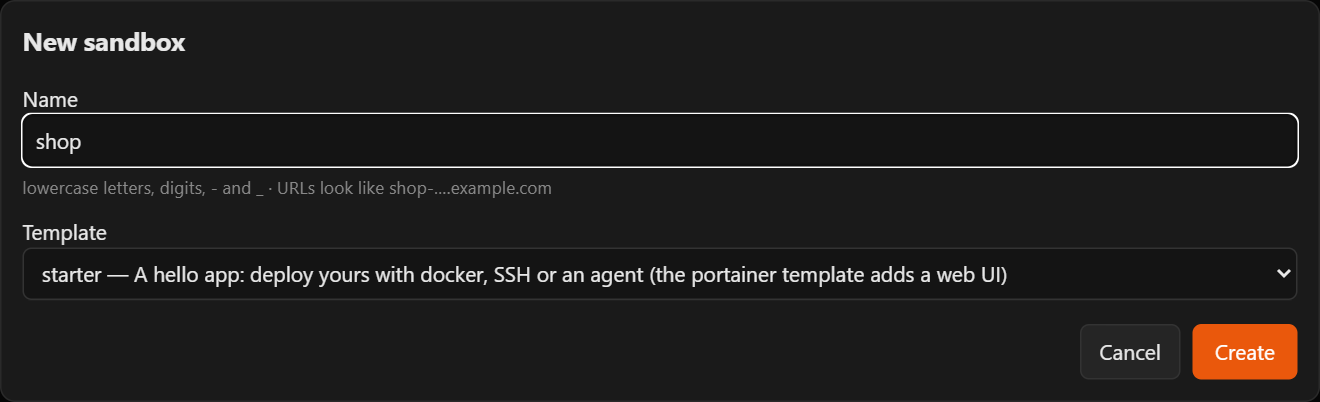
A sandbox is your own small server: your app runs there, not on your computer.
Simple or Advanced
The switch at the top right changes how much the screen shows. Simple is enough for everything here. If you see no switch, you are in Simple: the server lets only the admin switch.

2. Install the p7y plugin in Claude Code (once)
-
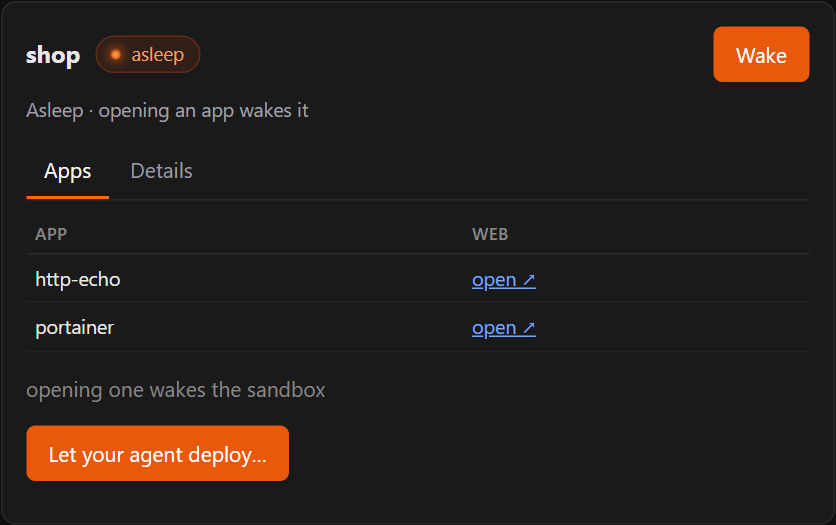
In Purgatory, click your sandbox, then Let your agent deploy….
-
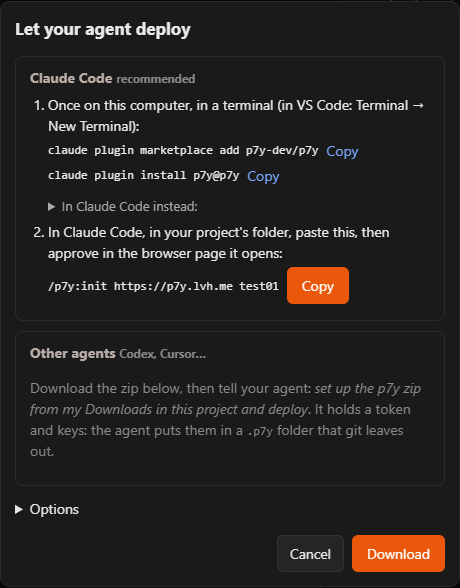
In the window's step 1, click Copy next to each of the two lines, open a terminal (in VS Code: Terminal → New Terminal; on Windows also PowerShell, on a Mac the Terminal app), paste them one after the other and press Enter after each:
claude plugin marketplace add p7y-dev/p7y
claude plugin install p7y@p7y
It installs the plugin for you, in all your projects. It asks for no address and no token.
Good to know
claudenot found? Claude Code is not installed for the terminal: see Claude Code's setup. An unknown option means an older Claude Code: runclaude update.- Already in Claude Code? In Claude Code instead in the same window shows the same two lines as
/plugin marketplace add p7y-dev/p7yand/plugin install p7y@p7y. (The Claude Code panel in VS Code has no/plugin: use the terminal.)
You install the plugin once. Each project then gets its sandbox in the next step.
3. Connect your project folder to the sandbox (once per folder)
Claude Code needs to know which sandbox belongs to which folder. You tell it once per folder; after that it remembers.
- Open your app's folder in Claude Code: start
claudein that folder, or open the folder in VS Code or the desktop app. -
In Purgatory, in the Let your agent deploy… window, step 2, click Copy. Paste the line into Claude Code and press Enter. It looks like this, with your Purgatory's address and your sandbox's name:
/p7y:init https://p7y.example.com shop -
Claude Code answers with a link and a code, for example:
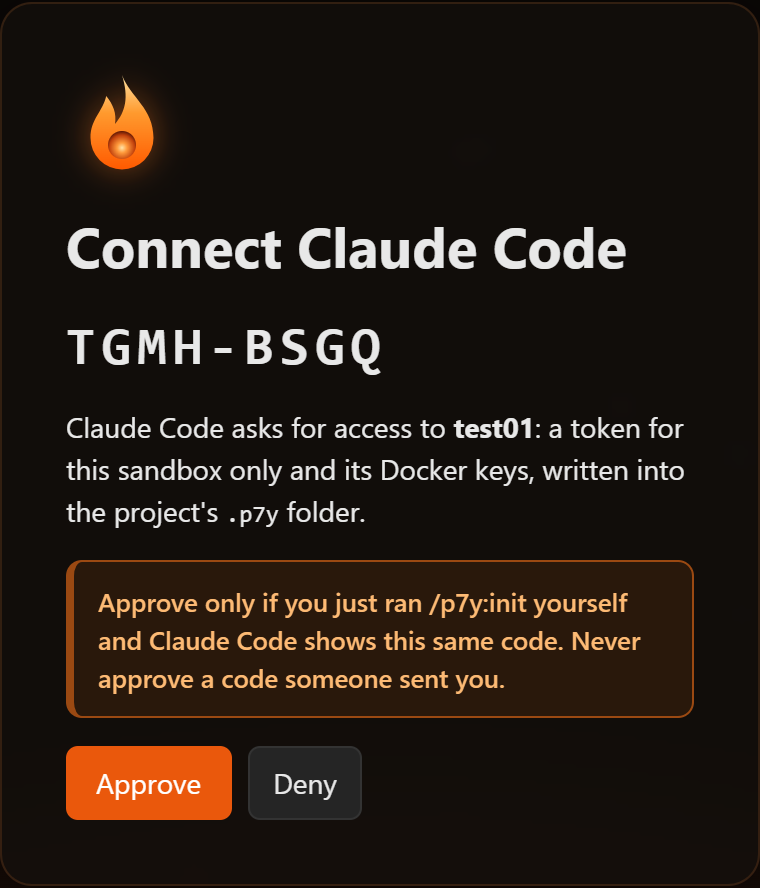
Open https://p7y.example.com/activate?code=TGMH-BSGQ and approve the code TGMH-BSGQ.
-
Open the link in your browser (sign in if Purgatory asks). The page shows the code and the sandbox. Check that the code is the same one Claude Code printed, then click Approve.
-
Go back to Claude Code. Within a few seconds it says the folder is connected to the sandbox. That is all.
Approve only your own code
Approve a code only if you just ran /p7y:init yourself and Claude Code shows that same code. If someone sends you a link like this, do not approve it: whoever started that code would get into your sandbox. Click Deny instead.
What happened behind the scenes: Claude Code got a token for this one sandbox and the sandbox's Docker keys, and wrote them into a .p7y folder in your project. You never see or copy them. The folder is secret, and it keeps itself out of git on its own: leave it there. The token works for 90 days (then run /p7y:init again). You can revoke it in Purgatory: Advanced → Access tokens, where it is named Claude Code init <date>.
If something goes wrong
- The code ran out: it works for 10 minutes and only once. Run the same
/p7y:initline again for a new code. - You clicked Deny by mistake: run
/p7y:initagain. - The button says Enable Docker access and approve: the sandbox does not let Docker in yet. Click it: the sandbox restarts (about 30 seconds) and Claude Code carries on by itself.
- The folder was connected to another sandbox already: Claude Code asks before it replaces that connection.
- A wrong sandbox in the list: if the line names a sandbox that is not yours, the page lets you pick one of your own sandboxes instead.
4. Deploy
In the same folder, say in your own words:
Deploy this app.
Claude Code wakes the sandbox, builds your app there, starts it and checks that it answers. At the end it gives you a link like https://shop-web.example.com (your sandbox's name first). Open it: that is your app, and it works for anyone you send it to.
5. Change and update
Changed something? Say:
Update the app.
The same link shows the new version a few seconds later.
Good to know
- Sleep: when nobody uses the app for a while (30 minutes by default), the sandbox sleeps to free the server. The next visit wakes it in a few seconds: the visitor sees waking up and then your app. Nothing is lost.
- Sleep later: let it sleep only after 2 hours without visitors works too, or set it in Purgatory: the sandbox → Details → Sleep → Change… (never is there as well).
- It does not answer? Ask Claude Code why does my app not answer?: it reads the app's logs in the sandbox. The usual cause is an app that listens only on
localhost; Claude Code fixes that. - Only for you or your colleagues? Say make it visible only to me (or only to my colleagues): Claude Code sets
p7y.access(App access), and opening the link then asks the visitor to sign in to Purgatory. - Docker is needed on your computer only for its command line: the build runs in the sandbox.
More projects
Each folder is tied to one sandbox by its own .p7y folder, so different folders can use different sandboxes, even on different Purgatory servers. For another folder, do step 3 there: in Purgatory, on that folder's sandbox, Let your agent deploy…, copy the /p7y:init line and paste it into Claude Code in that folder. The plugin needs no new setup.
To move a folder to another sandbox, run that sandbox's /p7y:init line in the folder: Claude Code asks, then replaces the connection.
Used the earlier plugin, which asked for an address and a token? Run /plugin marketplace update p7y once, then /p7y:init in each project.
More details: Claude Code plugin.